Updates
Major updates, and every release.
The big leaps get a spotlight. Below that, the full trail, from a single HTML file to a full browser studio.
Latest release

v36 · October 2026
Darkroom.
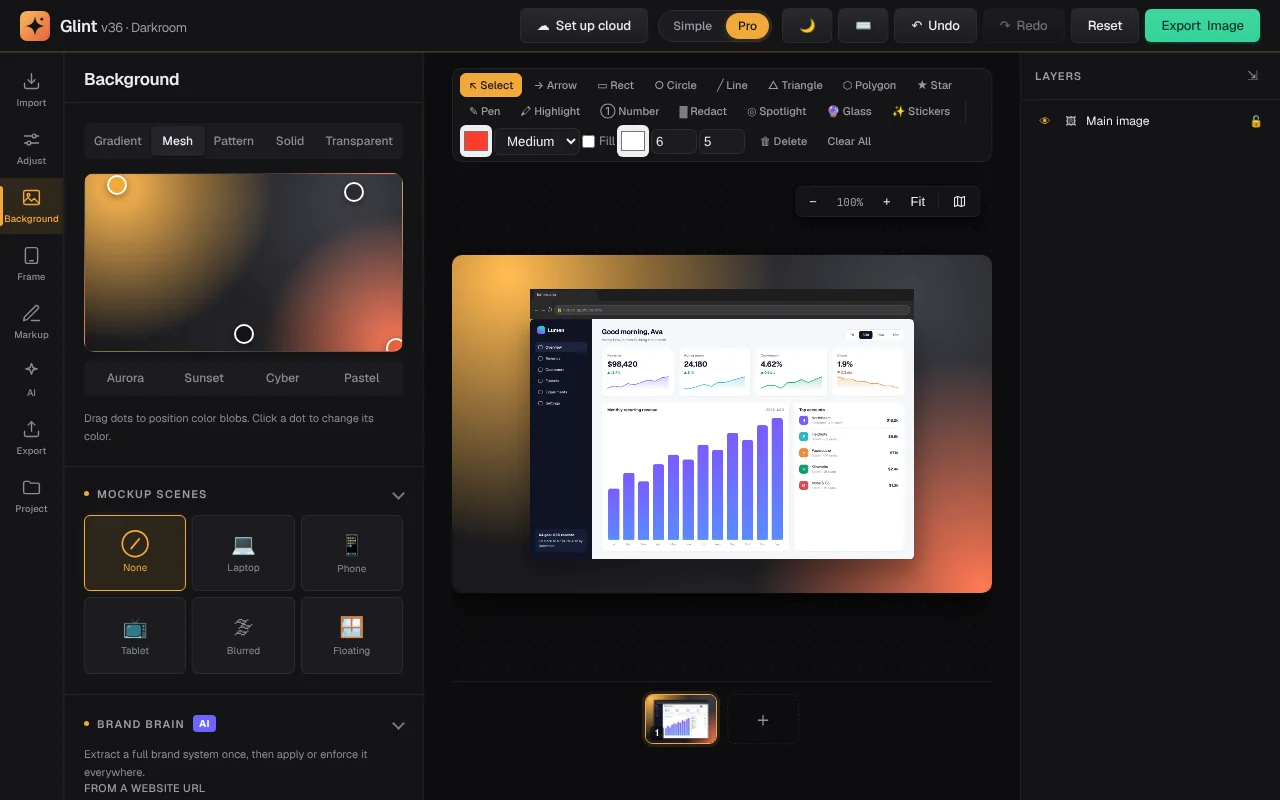
Meet Glint. A new name and a new look for the studio, with every feature and every project carried over.
A name of its ownGlint, with a sparkle mark and a graphite and amber interface in light and dark.
Your work comes with youProjects, templates, brand kits and settings move over on your first visit. Nothing is deleted.
Glint CaptureThe browser extension has the new name too. The old one keeps working until you update.
Every release
-
Darkroom
The fourth photography codename, and the biggest launch so far: the studio is now Glint.
- A new name. The studio is now Glint, everywhere: the studio, the site, the installed app and the browser extension. Read why on the new Meet Glint page.
- A new look. A sparkle mark, and a graphite and off-white interface with one amber accent. In light mode, highlighted text stays dark so it is easy to read.
- Your work comes with you. The first time you open Glint, your projects, templates, brand kits, saved colors, API keys and settings are copied over automatically. The old copy stays in your browser as a backup.
- Glint Capture. The browser extension is renamed and restyled. Captures from the older version of the extension you already have still open in the studio.
- A new homepage. Every image on it is real output from the editor, including a new graphite and amber background recipe.
-
Contrast
The third photography codename. This one is about showing the difference: what changed, side by side.
- Before / After. The new Before / After section in Import puts an old screenshot and the new one in the same frame, split by a divider you drag right on the canvas. Choose left/right or top/bottom, rename the Before and After labels, and change the divider's color and width. Press "Use current as Before" first, then load the new screenshot, and it is set up for you.
- Works everywhere, exports everywhere. The comparison sits inside your screenshot, so frames, device and 3D mockups, shadows, and filters all apply to it, and it bakes into exported images and videos. It saves with your projects and pages.
- Animated wipes. Turn on "Animate a wipe" and a Before / After lane appears in Motion Studio. The divider sweeps from the old screenshot to the new one, and you can move or stretch it like any other clip and export it as a video or GIF.
- Interactive slider pages. "Export interactive slider" downloads one small HTML file with a divider people can drag (or move with the arrow keys). It needs nothing else, so you can put it in a changelog, docs page, or pitch.
- Simple and Pro modes. A new Simple / Pro switch in the header. Simple shows only the tools most people need, and lists the rest at the bottom of each panel. New visitors start in Simple; if you've used Glint before, you stay in Pro.
- A toolbar that follows your selection. Select an arrow, shape, text, or redaction and a small toolbar appears right above it, with color, size, bold and italic, duplicate, bring to front, send to back, and delete. The "⋯" button opens the full right-click menu. Turn it off from Cmd-K if you prefer.
-
Bokeh
The second photography codename. This one is about focus: showing people exactly where to look.
- Spotlight, rebuilt. Add as many focus areas as you need with the Spotlight tool, as boxes, circles, or rounded shapes (hold Shift for a circle). Select one to move it, drag its corner to resize it, or duplicate and delete it like any other object.
- Blur, soft edges, and color. Everything outside your focus areas can now be blurred as well as dimmed, with a soft-edge slider and any dim color. Spotlights in older projects open exactly as before.
- Real background blur. The new Bokeh section in Adjust finds the subject of a photo and blurs everything behind it like a wide-open camera lens. Bright spots bloom into round or hexagonal highlights.
- Private, and in your exports. Subject detection runs in your browser with the same model as Remove Background, so your photo never leaves your computer. Bokeh works inside every mockup, and both effects bake into your exported images.
-
Aperture, tidied
- Undo after a slider drag works. Dragging a slider or picking a color and then pressing Undo used to do nothing the first time. It now puts the old value back straight away.
- Reset and Clear All can be undone in one click. Both now show an Undo button in the notification, like deletes do. Undoing a Reset also brings back extra images you'd added.
- Spotlight exports correctly. The highlighted area used to come out see-through in exported images. It now shows your screenshot at full brightness, the way the preview does.
- Real examples on the site. The homepage and gallery now show images made in Glint instead of stock photos, and the homepage loads faster.
- Lighter first visit. The offline copy downloaded on your first visit drops from about 5.4 MB to 1.6 MB. Heavier tools like 3D mockups and PDF export download the first time you use them.
-
Aperture, polished
- Undo and Redo buttons work again. The header Undo and Redo buttons had been stuck greyed out; they now light up after every change, and undoing also moves the sidebar sliders back so they match the canvas. Loading a template is now undoable too.
- No more invisible click-blockers. A notification that had slid away could leave an invisible strip over the top-right toolbar that swallowed clicks (the Layers collapse button, for one). Hidden notifications are now truly out of the way.
- A studio you can drive with a keyboard or screen reader. Every slider, dropdown, and toggle now announces its name. Background, size, and shadow presets, scenes, 3D demos, and the drop zone can be reached with Tab and picked with Enter or Space. Esc closes the welcome and cloud dialogs, and status messages are read aloud.
- A real menu on phones. On small screens the site's nav links no longer disappear: tap the menu button to open them. Every page also gains a Skip to content link, the nav marks the page you're on, links inside paragraphs are underlined, and muted text is easier to read.
-
Aperture
Starting with v33, each release gets a photography codename, in A to Z order. This one is about the small things you do a hundred times a day.
- Pick colors from anywhere. Every color picker now has an eyedropper that samples any pixel on your screen, including your own canvas (Chrome and Edge). Under each picker, your brand colors and the last 8 colors you used are one click away.
- Space things evenly. Select three or more objects and Distribute spreads them with equal gaps. Match size makes a selection as wide or as tall as its largest item. Both live in the right-click menu and Cmd-K.
- Lock and hide that actually hold. Locked or hidden layers can no longer be clicked, dragged, or caught by a marquee or Select all. Hide or lock straight from the right-click menu, and bring everything back with Unlock & show all.
- Undo right from the toast. Deleting objects, a page, or a board card shows an Undo button for a few seconds. Deleted pages come back with their latest edits, and board cards return to the same spot.
- Quick export and a tidier stage. Cmd/Ctrl+Shift+S re-exports with the last preset you used, and the preset menu remembers it. Page thumbnails now sit under the canvas instead of squeezing it from the side, and the zoom controls no longer cover the board's Export button.
-
Open Canvas, polished
- Board edits now save and undo. Moving, resizing, connecting, grouping, and labeling cards autosaves with your project, and Cmd/Ctrl+Z / Shift+Cmd/Ctrl+Z undo and redo them on the board instead of silently changing the hidden page behind it. Projects opened under v32.0 whose cards went missing are repaired automatically.
- Touch, pinch, and trackpads. Drag cards with a finger, pinch with two fingers to zoom around them, drag empty space to pan, and double-tap a card to open it. On a trackpad, pinch zooms smoothly and a two-finger scroll pans. The board now fills the whole stage instead of being clipped to the canvas size.
- Sharper, honest exports. The board PNG renders at up to 3x (kept within the browser's canvas limit), multi-line labels wrap exactly as on screen, and the Export button shows progress. The Design Agent now reports a failed export instead of claiming success.
- Faster to drive. Board shortcuts for nudge, select all, group/ungroup, fit, zoom, text, and connect (press
?to see them); Esc steps back one level at a time; labels edit inline; Arrange, Ungroup, and Export sit in the toolbar and the command palette; cards are numbered; and an empty board offers Upload and Add-from-URL right where you look. - Cleaner seeding and a more accessible studio. Add-from-URL shows progress, skips favicons and tiny images, and tells you what it skipped. Icon-only buttons now have accessible names, and dialogs keep keyboard focus inside and return it when they close.
-
Open Canvas
- An infinite board for your whole project. Every page is now a card on a freeform, pan-and-zoom canvas. Drag cards to arrange them, resize and layer them, draw arrows between them, marquee a set into a group, and drop text labels anywhere. Double-click any card to edit that page in the full studio and jump straight back. The board is a new view alongside Single, Set, and Batch, open from the command palette (Cmd-K).
- Seed it from a URL. Paste a page link in the board toolbar and Glint scrapes its images server-side (SSRF-guarded) and drops each one onto the board as a card, loaded CORS-clean through the existing proxy. Paste a link, get a set, no manual capture.
- Drive it by chat. The Design Agent is now board-aware: ask it to arrange your cards into a grid, row, hero, or bento layout, group a set, add or duplicate a card, seed from a link, or export the whole board as one PNG. The agent mutates the board through the same tools you'd use by hand.
- Export and persist the board. One command re-renders every card at full resolution and composites them with your text and arrows into a single PNG that matches the board on screen. The layout saves with your project (document version 14) and reopens exactly as you left it. The first version directed under GLM-5.2.
-
Merge Studio
- Placeholders turn a design into a template. Type tokens like
{{name}}into your text overlay, watermark, browser title or URL, or your background and text colors. Merge Studio finds them automatically and shows which ones a column will fill. The tokens save with your project, so the template travels with it. - One CSV becomes a whole folder. Upload a spreadsheet and get one on-brand PNG per row, each named from your data and bundled into a single ZIP. Step through rows live on the canvas before you export, and your template restores untouched afterward.
- Per-row screenshots. An optional
imagecolumn swaps the screenshot itself for each row, loading through the same proxy the URL importer uses, so every export stays sharp and untainted. Product shots, avatars, or localized captures, all from one design.
- Placeholders turn a design into a template. Type tokens like
-
Studio Intelligence
- Campaign Generator. Turn one screenshot into a coordinated set — hero, Instagram, X, LinkedIn, an App Store set, and a teaser video — saved in a revisitable Campaign folder you can re-download as a ZIP.
- AI Screenshot Editor. Edit the content inside a screenshot: fix a typo, recolor a button, auto-redact emails and names, or remove a stray cursor — the pixels change, and it bakes into every export.
- Brand Brain. Paste a URL or drop a logo and Glint extracts a full brand system — palette, type, frame, logo — then applies and enforces it across every design and export.
- Producer. Pick a goal like "Launch kit", walk away, and come back to a finished, brand-consistent folder of assets. Copilot becomes autopilot.
-
Motion Studio
- One timeline for every kind of motion. Entrance animations, Ken Burns pan and zoom, video clips, and 3D turntable spin now share a single playback clock. Each one shows up as its own lane in a new Motion Studio panel, so you can scrub the whole composition on one playhead and watch every layer play together.
- Combine motion that used to be mutually exclusive. Drag a clip along its lane to set when it starts, or drag its edges to retime it. Stagger each element's entrance, kick off a Ken Burns after a fade lands, and preview a turntable spin live in the editor instead of only on export.
- Export the whole thing in one click. Motion Studio renders the entire timeline, every layer combined, to MP4 or GIF through the same studio-quality encoder. Your existing per-feature controls still work exactly as before, and old projects open with their motion already laid out on the new timeline.
-
Studio quality-of-life
- Multi-select and group move. Drag a rubber-band marquee around objects, or Shift-click to add and remove them, then move, nudge with the arrow keys, align, or delete the whole group at once. Ctrl/⌘+A selects everything on the canvas, and a single Undo steps the whole group back.
- A right-click context menu. Right-click any object for Duplicate, Delete, Bring to front, Send to back, Copy & paste style, and Align — all acting on your full selection. Duplicate is also Ctrl/⌘+D.
- A reusable asset library. Every image you load is kept in a small library in the Import tab; click a thumbnail to drop it back in as a layer, or double-click to make it the main image. No more re-uploading the same logo.
- Export presets. Save a format + quality + pixel scale once, then re-export in a click — built-ins cover PNG/JPEG/WebP at 1×, 2×, and 3×, and your own presets show up in the Export panel and the Cmd-K command palette.
-
Physical & print mockups
- Beyond screens, onto real things. The new Surface Studio wraps your image onto a t-shirt, mug, poster, framed print, business card, or packaging box. Each surface warps the art to its real shape, with apparel following the fabric folds and the mug curving around a true cylinder.
- Place it exactly, then shade it. Pick a garment or material colour, then size, nudge, rotate, and shade the artwork until it sits in the material instead of floating on top. Quick presets for a merch tee, a poster wall, and packaging get you a hero shot in one click.
- Bakes into the export. Surfaces render into the same canvas as everything else, so they carry your colour grade, text, watermark, and logo, download as a flat PNG, and save with your project. Find it under the Frame tab, and on the new Product mockups page.
-
Browser extension
- Capture any page in one click. The new Glint Capture extension for Chrome grabs the visible viewport, the entire scrolling page (scrolled and stitched into one tall image, with sticky headers held in place), or a region you drag, and opens it straight in the studio.
- A quick editor, and the full studio. Every capture opens a built-in quick editor right away: crop, add padding and a background, drop in arrows and text, and download a clean PNG. Need more? One click hands the shot to the full studio at snapshotpro.xyz for device frames, mockups, shadows, and redaction.
- Private by design. The extension reads a tab only when you click it (activeTab), with no background access, no tracking, and no analytics. The capture goes to the studio and nowhere else. Find it on the new Extension page and the Chrome Web Store.
-
Interactive Tours
- Turn your pages into a clickable demo. Flip on Tour mode and every page becomes a step. Drag hotspots onto the canvas and pin a callout to any side, so a viewer can click through a real product walkthrough instead of staring at a flat screenshot.
- Export one self-contained HTML file. Your whole tour ships as a single .html with the frames inlined and a tiny built-in player. It works offline, opens anywhere, and embeds as an iframe. No account and no server.
- Hotspots, callouts, and auto-advance. Set a step to advance on its own, preview the real player inside the editor before you export, and undo any hotspot edit. It is built on the existing pages, so your backgrounds, frames, and effects come along.
-
Code Snippet Studio
- Turn code into a screenshot. Paste a snippet and Glint renders it as a crisp, syntax-highlighted image. Thirteen languages with auto-detect (JavaScript, TypeScript, Python, Go, Rust, SQL, JSON and more), with line numbers, tab width, font and padding all yours to set.
- Eight editor themes and a real window. Snazzy, Dracula, Nord, One Dark, Monokai, GitHub (dark and light) and Solarized recolor the whole card in a click. Wrap it in a macOS or Windows window with your own title, or drop the chrome for a clean card.
- It drops into the whole studio. A code card is just an image here, so a gradient or mesh background, a soft shadow, rounded corners, a redaction over a secret line, and pixel-perfect PNG export all work on it exactly like a screenshot.
-
Mobile Studio
- A studio built for the phone. On a small screen the editor now leads with the canvas: your design fills the viewport, and a tab dock along the bottom keeps Import, Adjust, Background, Frame, and the rest one thumb-tap away. No more hunting through a long sidebar.
- A bottom sheet you can flick. Controls live in a sheet you drag between peek, half, and full height, so you see as much canvas or as many options as you want. Swipe sideways on the handle to flip between tool groups, with a light haptic tap on every snap.
- Share an image straight into the editor. Install Glint to your home screen and it joins your phone's share sheet. Share a screenshot from any app and it opens here, loaded and ready to frame. The desktop studio is untouched, and every tool works exactly as before.
-
Command Center
- A command palette that knows the moment. Press Cmd-K to reach any of the studio's actions. The palette now hides commands that do not apply right now, so you only ever see what you can actually do.
- Recents, categories, and shortcut hints. Open it and your most-used commands rise to the top, the rest sit in clear groups, and every row shows its keyboard shortcut so you pick up the keys as you work.
- A help overlay that never drifts. Keyboard shortcuts now come from a single source, and the "?" help overlay is generated from it, so the list you read always matches the keys that actually fire.
-
3D mockups
- 3D device mockups. A new 3D Mockup section in the Frame tab puts your screenshot on a real three-dimensional phone, tablet, or laptop, with depth, lighting, and reflections. Drag the preview to orbit it, and tune the angle, zoom, material, and scene.
- Spin export. Turn on Spin to export a smooth turntable as a GIF or MP4 from the usual export buttons. The animation runs through the same renderer, so it stays crisp at any size.
- One page for AI, and an About page. The site gains a single AI hub that gathers the Design Agent, AI Assets, Enhance, and Vision, plus an About page on why the studio exists. The nav now points to the AI hub, with the Design Agent a click away.
-
A tidier studio
- Cleaner sidebar. Every panel now sits in the right tab, sections collapse so you only see what you need, and the version tags next to feature names are gone. Nothing moved that you rely on, it is just easier to scan.
-
The AI Design Agent
- Design by conversation. A new copilot designs the whole presentation from a sentence. Describe what you want and it calls the studio's own tools, composing the background, frame, layout, palette, color grade, and headline, then refines on request: "make it warmer, bigger headline." It narrates each change as it works.
- It generates, sees, and remembers. The agent generates backgrounds, isolates your subject, and can look at the canvas to critique and fix its own work. It streams its replies, offers suggested next steps, resumes the conversation across reloads, and learns your recurring style and brand so it stays on-brand without being re-told.
- Built on the whole studio. Every change runs through the same engine as the rest of the app, so it bakes into exports and a whole agent turn undoes in one step. It works with your OpenAI or Claude key, and the model is configurable as stronger ones ship. This is the culmination of the Design Variations and AI Assets releases.
-
AI Assets
- AI backgrounds. Describe the background you want and generate it on the spot. The image is created at your canvas aspect ratio, renders behind your screenshot like any other background, and bakes into every export.
- On-brand generation. Turn on Use my palette and the prompt carries your active palette colors into the generation, so the result matches the rest of your design instead of clashing with it.
- Place behind subject. One toggle removes your screenshot's own background and drops the subject onto the generated scene, for an instant product-shot composite. It is the first of the AI tools the next release builds on.
-
Design Variations
- One-click variations. Load a screenshot, click Generate, and get four fully-styled designs of it as preview cards. Each sets the background, device or browser frame, padding and layout, shadow, and color grade together, drawn from curated style recipes so every option looks designed rather than random.
- Pick, then keep editing. Click a card to apply that look to the canvas. It is a starting point, not a lock-in: every control stays editable afterward, the change is fully undoable, and it bakes into exports like everything else. Not feeling the set? Shuffle again for a fresh four.
- The start of something bigger. Variations runs on a new design engine that describes a whole look as data and applies it in one step. It is the groundwork for the AI design features coming next.
-
Color: filters, palettes, and mapping
- Color filters and grades. Temperature and tint join the filter sliders, baked per-pixel so they reach effects that CSS filters cannot. Four cinematic one-tap looks land above them: Teal/Orange, Moody, Bleach, and Golden, each setting tone and color together so the sliders move to match.
- Custom palettes and harmonies. Build and name your own palettes in a saved library, edit and reorder swatches, or paste hex. Generate a full harmony from one base color, complementary, analogous, triadic, split-complementary, or tetradic, and save any extracted palette straight into the library.
- Color mapping. Map your active palette onto the image three ways: a gradient-map and duotone, recolor to the nearest palette color, or a LAB color transfer that matches the image to the palette's tone. Intensity and posterize steps are adjustable, and it renders through the same path as everything else, so it bakes into every export and is fully undoable.
-
Pattern backgrounds and art filters
- Pattern backgrounds. A new Pattern background joins gradient, mesh, and solid. Pick dots, a grid, lines, checker, or diagonal, then set the foreground and background colors, the tile size, the opacity, and an angle. It renders behind your shot like any other background and bakes into exports.
- Art filter presets. One-tap looks sit above the filter sliders: Noir, Vintage, Vivid, and Faded, plus None to reset. Each sets brightness, contrast, saturation, and tone together in a single click, and the sliders move to match so you can fine-tune from there.
-
Liquid glass and film grain
- Liquid glass. Drag a frosted glass panel over your screenshot with the new glass tool. It samples the pixels behind it and blurs them, so it really refracts your content rather than sitting as a flat tint, and the blur, tint, corner radius, and rim highlight are all adjustable. It bakes into every export.
- Film grain. Lay a cinematic grain texture over the whole canvas, with controls for amount, grain size, blend mode, and a monochrome toggle. The texture sits under your text, watermark, and logo so they stay crisp, and it costs nothing while it is switched off.
- Both bake into exports. Glass and grain render through the same path as everything else, so they appear in PNG, JPEG, batch, and App Store exports, ride along in saved projects and version history, and are fully undoable. Designs saved before v16 render unchanged.
-
Vector shape tools
- A shape library. Five tools join the markup bar: line, ellipse, triangle, polygon, and star. Each draws live as you drag, and once placed it selects, moves, nudges, aligns, and deletes exactly like an arrow or a text label, because shapes reuse the same annotation plumbing.
- Fill or stroke. Toggle fill on any closeable shape and pick a fill color, or leave it a clean outline. The setting bakes into each shape as you draw it, so one can be a solid badge while the next stays a hollow frame.
- Adjustable polygons and stars. Choose how many sides a polygon has and how many points a star has, anywhere from three to twelve, for anything from a triangle callout to a twelve-point burst. Shapes bake into every export and ride along in saved projects and undo history.
-
Motion on stills
- Ken Burns pan and zoom. Bring a still photo to life with a slow pan and zoom. Pick zoom in, zoom out, pan left, pan right, or a classic combined move, then press play to preview it. It rides the same clock as your animations, so it exports as motion too, and turns off automatically while a video clip is loaded.
- Entrance animations for any element. The main image is no longer the only thing that can animate. Give a text overlay, an annotation, or an added image its own entrance, set from the layers panel, and each one plays on its own track so elements can animate independently of one another.
- Easing curves. Every animation track now carries its own easing, picked from a library of eight curves: linear, ease in, ease out, ease in-out, a stronger ease in-out, overshoot, elastic, and bounce. Choose one per track so each element moves with its own character.
- Animation saves and undoes. Animation now rides along in saved projects and version history and is fully undoable, just like the rest of your design. Loaded and shared designs always open paused at the start, never mid-playback.
- Export a still as MP4. Animated stills and Ken Burns moves now export to MP4, not just GIF, with the same resolution and quality controls. MP4 uses your browser's built-in video encoder (Chrome and Edge today), and falls back to a clear message with GIF as the alternative where it is not available.
-
Timeline scrubber and export controls
- Timeline scrubber. The two trim sliders are now a filmstrip timeline: drag the in and out handles to trim, drag the body to scrub, and watch a live playhead during playback. Everything snaps to whole frames, the labels read both seconds and frame number, and you can step a frame with the comma and period keys or set the in and out points with the bracket keys.
- Motion export controls. Exporting a clip as MP4 or GIF now offers a resolution multiplier (0.5×, 1×, or 2× the canvas), a quality preset, and a GIF loop choice of loop forever or play once, so you can trade file size against sharpness without resizing the canvas.
-
Layer blending and opacity
- Layer blend modes. Any layer can now composite with a blend mode instead of just stacking on top. Ten curated modes ship: normal, multiply, screen, overlay, soft light, hard light, color dodge, color burn, difference, and luminosity. Set one on the main screenshot, an annotation, an added image, or a text overlay, straight from the layers panel.
- Per-layer opacity. Each layer has its own opacity slider, so you can fade a watermark, soften an overlay, or ghost an added image without changing anything else. Blend mode and opacity ride along in saved projects and version history, and both are undoable. Designs saved before v15 render unchanged.
-
Alignment, reflections, and text effects
- Snapping and alignment guides. Dragging an element now snaps it to the canvas center and edges, and to other elements, with blue guide lines that show only while you drag. Nudge a selection with the arrow keys (hold Shift for 10px steps), or align it to the canvas from a compact toolbar. Guides never appear in an export.
- Device reflection. Add a soft mirrored reflection beneath any device mockup or framed screenshot for the classic product-shot look. Opacity, length, and gap are adjustable, the reflection follows a tilted mockup, and it bakes into exports.
- Richer text effects. Text overlays gained an outline, a gradient fill, a highlight box, and a drop shadow, usable on their own or together with the correct layering applied for you. Designs saved before v14 keep rendering unchanged.
-
More background gradients
- Twelve new gradients. The Background tab now ships twenty preset gradients instead of eight. The additions cover warm corals and embers, cool lagoons and tides, fresh greens, soft blush and peach, and two darker fills for moodier shots.
- Still fully editable. Each new preset drops into the existing gradient editor. Tweak the color stops, change the angle, or switch to radial, and the preset is just your starting point.
-
Studio redesign
- A new workspace. The editor moved from one long scrolling sidebar to an icon rail plus a single contextual panel. Eight tabs (Import, Adjust, Background, Frame, Markup, AI, Export, Project) keep every tool one click away, and the studio remembers the tab you were on.
- First-run welcome. A short, dismissible tour introduces the rail, multi-page decks, and autosave the first time you open the studio.
- Same tools, calmer surface. Flatter accents and a sticky panel header make a deep toolset easier to scan. Nothing was removed, and on small screens the panels still collapse into one scroll.
-
Multi-page decks
- Multi-page documents. A project can now hold many pages, each with its own canvas size and design. Add, duplicate, reorder, and delete them from a filmstrip beneath the canvas. Switching pages just saves the current one and loads the next, so the editor stays exactly as it was.
- Deck export. Export the entire document as a multi-page PDF (via
jsPDF) or a numbered set of images in a ZIP, rendered page by page to keep memory bounded. - Present mode. Play the whole deck full screen with arrow-key navigation, rendered straight from your pages. Pages and decks ride along inside the v12 project and version history.
-
Projects & version history
- Project workspace. Every design is a named project with its own thumbnail. Open, rename, duplicate, or delete from one dashboard, and pick up exactly where you left off.
- Version history. Automatic and named snapshots with a visual timeline: restore any point in time, or fork a version into a brand-new project.
- Autosave, online or off. Work saves to your browser as you edit, then syncs across devices once you sign in. Designs are stored whole, artwork included.
-
Record, generate, collaborate
- Screen recording + auto-zoom. Record your screen in the browser (
getDisplayMedia+MediaRecorder); Glint eases in on every click, then you frame the clip in any device and export MP4 or GIF. - AI Art Director. Describe a vibe and the model returns a full design spec (background, gradient/mesh, device frame, headline, shadow), validated against existing presets and applied via the normal undoable path.
- Live collaboration. Share a
?collab=link and design together in real time over Supabase Realtime, with live cursors and synced, history-safe edits. - Also in v11. Load media straight from a URL or YouTube link, export App Store sets localized into multiple languages, and publish or browse designs in a new community gallery.
- Screen recording + auto-zoom. Record your screen in the browser (
-
Brand Kit
- Save your brand once. Bundle your colors, heading font, signature gradient or mesh, device colorway, and a logo + text watermark into a named Brand Kit, stored right in your browser.
- Apply in one click. Push the whole identity onto a single design, or onto an entire App Store set so every panel matches, captions and all.
- Logo watermark. Drop in a logo and place it in any corner; it rides along on every exported screenshot and store panel.
-
Sets, generative AI, and video
- App Store screenshot sets & batch. Design one mockup, then export a full set of captioned screenshots at every store size. Run a template across many images and download a ZIP.
- Generative AI edits. Replace a background from a prompt, extend the canvas past its edges, and a magic eraser that removes objects and fills the gap.
- Video clips. Drop in a clip, trim it, frame it inside any device mockup, and export an MP4 or GIF.
-
Deeper mockups
- Baked 3D perspective into device mockups so tilt now carries through to the export, not just the preview.
- Added Android (Pixel) and Windows laptop frames alongside the Apple lineup.
-
Mockup Studio
- Procedural Apple-device frames drawn entirely on canvas: iPhone, iPad, MacBook, Apple Watch, and Studio Display, with recolorable finishes and accurate corners.
- One-click hero presets that set device, background, shadow, and canvas size together.
-
The visual overhaul
- A full redesign with glassmorphism and micro-animations, plus element animation with GIF export.
- AI auto-enhance, smart crop, and style transfer (watercolor, sketch, vintage, cyberpunk, noir).
- Sharing built in: share links, embed codes, QR codes, and social export presets.
-
One file, one idea
- Glint began as a single HTML file: drop in a screenshot, add a background and a frame, export. Everything since has built on that.